How to Scan a Barcode: The Complete Guide for PC & Mobile (2026)
A step-by-step guide to scanning barcodes on PC scanners, iPhone, and Android. Learn the best free apps for older phones and how to set up a retail scanner.

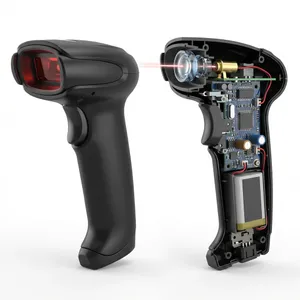
I remember the first time I set up a billing counter. I stared at the barcode scanner in my hand, wondering if I needed a degree in computer science just to make it beep.
If you are a retailer or business owner, you need to scan barcodes to check prices, count inventory, or bill customers quickly. But figuring out the right tool - especially if you have an older phone or a new PC setup - can be confusing.
In this guide, I will show you exactly how to scan barcodes using the device you already have, whether it is a professional USB scanner, a new iPhone 16, or an old Android phone from 2018.
Method 1: Scanning on PC (Using a USB Scanner)
If you run a shop, this is the standard way. You don’t need any complex software drivers for 99% of scanners. They are “Plug and Play.”
Step 1: Connect the Scanner
Take your USB barcode scanner and plug it into any USB port on your PC or laptop. You might hear a small “ding” sound from Windows. That means it is ready.
Step 2: Open Your Software
You don’t need to open a special “scanner program.” Barcode scanners work exactly like a keyboard.
- Open Notepad, Excel, or your Billing Software (like Zubizi).
- Click inside the text box where you want the number to appear.
Step 3: Scan the Item
Hold the scanner about 4-6 inches away from the product label. Press the trigger.
- Success: You will hear a beep, and the barcode number (e.g.,
890123...) will instantly appear on your screen.
Pro Tip: If the number appears but the cursor doesn’t move to the next line, check your scanner manual for a “Add Enter Key Suffix” barcode and scan it once.
Method 2: Scanning on iPhone (iOS)
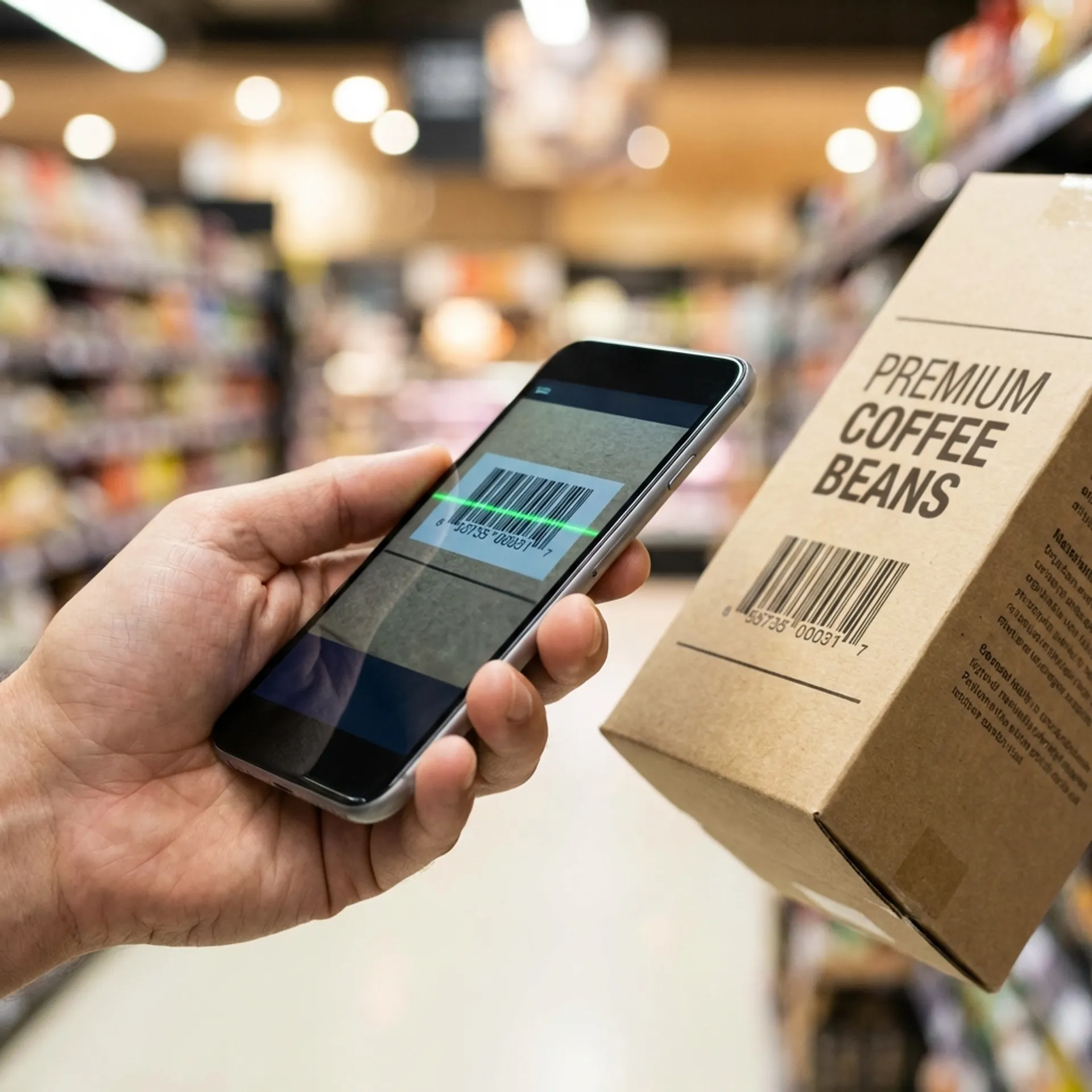
You usually don’t need a third-party app anymore. Apple built this feature right into the camera.
For iPhone (iOS 11 and later)
- Open the Camera app.
- Point it at the barcode (wait 1-2 seconds).
- A yellow notification will pop up. Tap it to see the product details or open the link.
For Older iPhones (iOS 10 and older)
If you are using an older device for inventory management, the camera won’t do this automatically. You need a lightweight app.
- Go to the App Store.
- Download Bakodo or Quick Scan.
- Open the app and point it at the code to scan.
Method 3: Scanning on Android
Android gives you multiple ways to scan without shrinking your storage space with ads-filled apps.
Option A: Native Camera / Google Lens (Best for New Phones)
- Open your Camera app.
- Look for a small Lens icon (a square with a dot) or just point at the code.
- If nothing happens, tap the screen. A link or product card will appear.
Option B: Quick Settings Tile
- Swipe down from the top of your screen twice to see your Quick Settings.
- Look for a tile named “Scan QR code”.
- Tap it to open a dedicated scanner instantly.
Option C: Best Apps for Older Android Phones (2018 or older)
I’ve seen many retailers use older, rugged phones for warehouse picking. If you have an old Android version, downloading a modern app might slow it down.
- Gamma Play (QR & Barcode Scanner): It is extremely lightweight and fast. It works on very old Android versions perfectly.
- Barcode Scanner (by ZXing Team): The classic, no-nonsense open-source scanner. No ads, just scanning.
Conclusion
Scanning a barcode doesn’t have to be innovative tech wizardry. It is about using the right tool for your specific device.
For your billing counter, always stick to a USB Scanner for speed. For checking inventory on the move, your phone’s built-in camera is usually enough.
If you are looking to set up a professional billing system that works seamlessly with both USB scanners and mobile devices, check out our GST Billing Software. We designed it to be plug-and-play for Indian retailers.