n8n Automation: Sending Monthly GSTR1 Files to Your CA
Learn how to save hours using n8n automation for your monthly GSTR1 filing. We show you how to fetch data from Zubizi and send it directly to your CA.

It happens every month. The calendar hits the 9th, and a familiar sense of panic sets in. Your CA is calling, the GSTR1 deadline is just two days away, and you have not even touched your sales data yet. You stop whatever important work you are doing to log into your billing software, download endless reports, meticulously check for errors, and finally email an Excel sheet to your accountant. It is stressful, and it is entirely avoidable.
It is a repetitive, boring task. We have seen hundreds of Indian SME owners waste hours on this manual process every single month. But what if you never had to do it again? What if the data just magically appeared in your CA’s inbox on the same day every month?
That is exactly where n8n automation comes in.
Today, I want to show you exactly how to set up an n8n automation for your monthly GSTR1 filing. We will use Zubizi’s API to fetch the sales data and send it automatically to your accountant.
Why Use n8n Automation for Your Monthly GSTR1 Filing?
Before we jump into the steps, let us quickly talk about why this is a game changer for your business.
First, n8n is a powerful workflow automation tool. It acts like a digital bridge. It connects your billing software to your email, WhatsApp, or Google Drive.
When you use n8n automation for your monthly GSTR1 filing, you completely eliminate human error. You do not forget to send the report. You do not send the wrong month’s data. You also save precious time. Time that you can spend talking to your customers or planning your growth strategy.
Let us break down the exact process.
The Essential Prerequisite: API Access
Before you start building the workflow, there is one critical requirement: your billing or ERP software must provide an API system for this particular task. This automation will work with any billing software that provides API access.
If you are using Zubizi and have not yet created your API key, the process is very simple. Log into your dashboard, go to the Settings menu, and look for the API Key section. From there, you can generate your API key instantly. For full API documentation, please contact our support team.
How to Automate Your Monthly GSTR1 Filing with n8n
Follow this simple guide to set up your n8n automation for your monthly GSTR1 filing.
Connect Zubizi API to Your n8n Workflow
- What it is: This is the foundation of your workflow. We need to tell n8n where to get your data.
- Why we do it: Your billing software holds all your exact sales invoices. By connecting it via an API, n8n can request the data securely without you ever logging in.
- How to set it up:
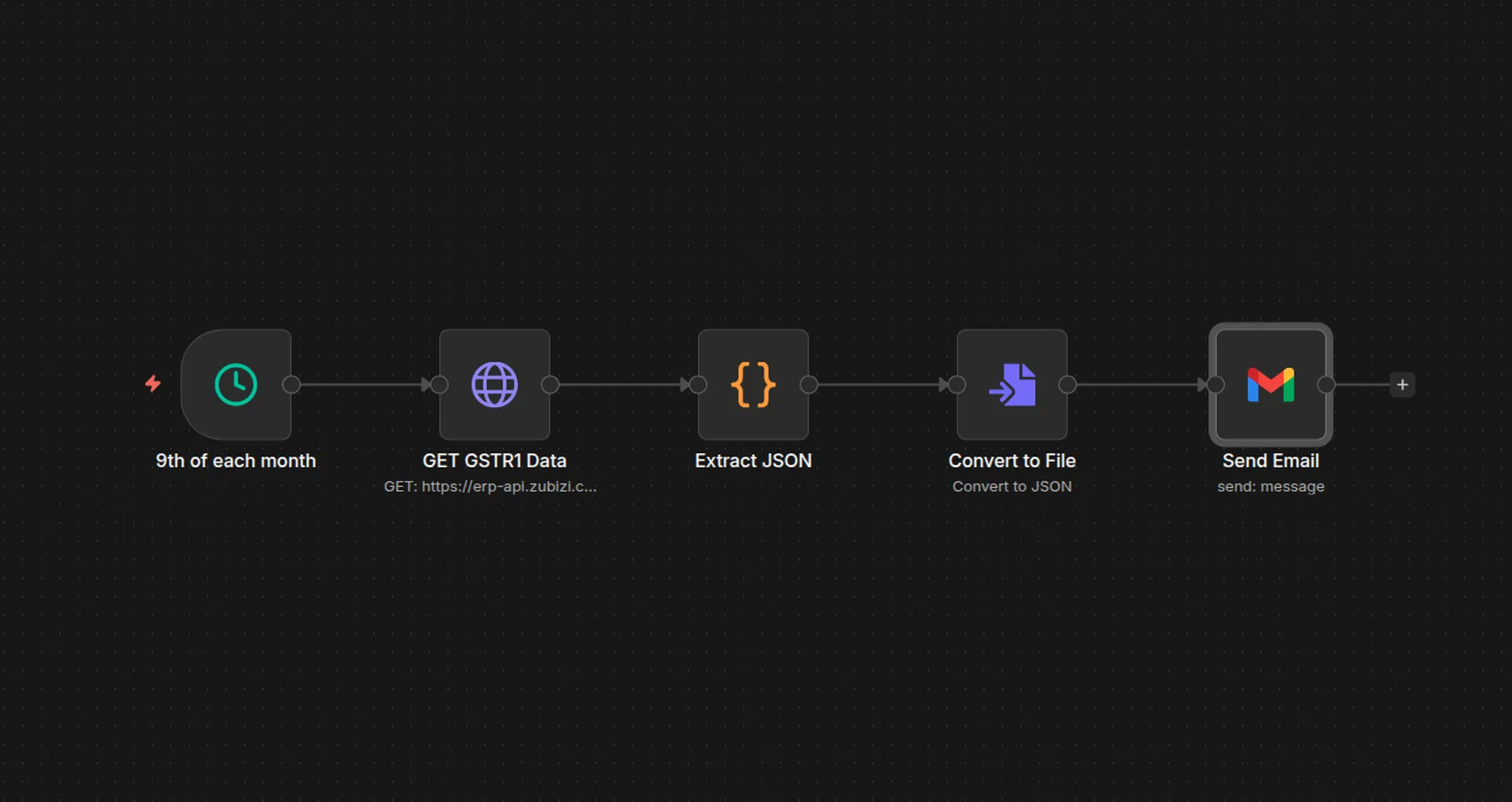
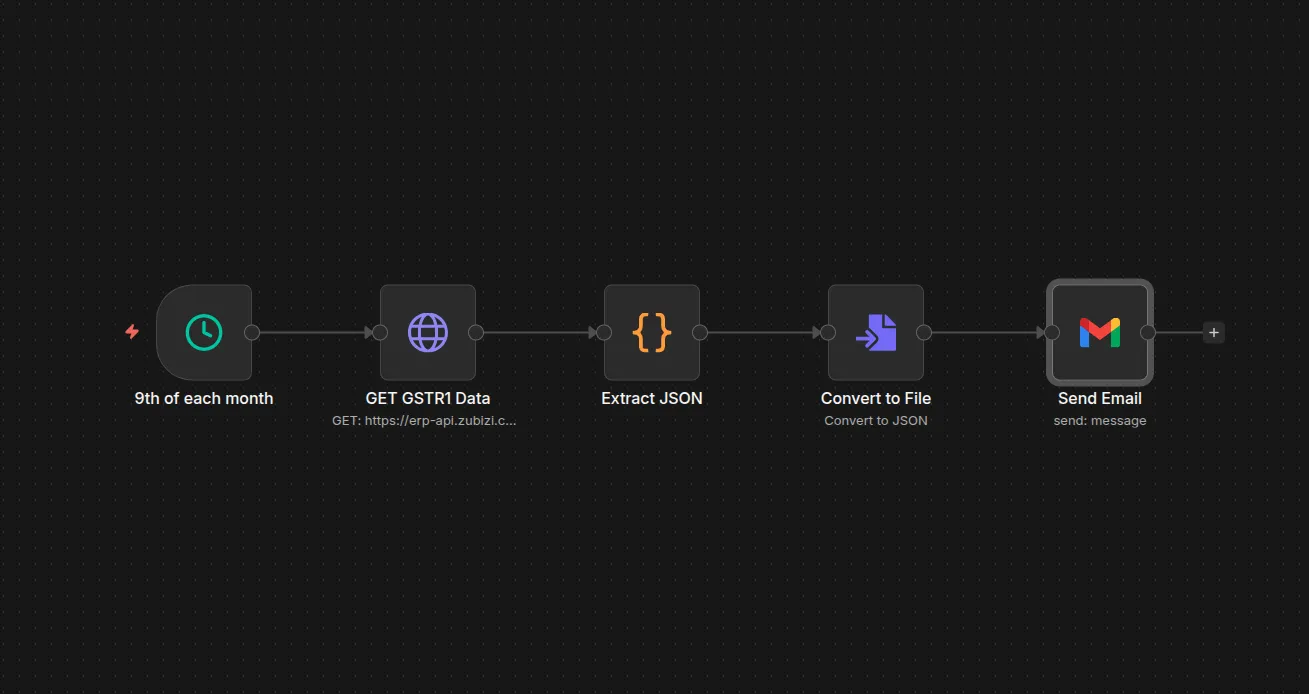
- Open your n8n dashboard and create a new workflow.
- Add an “HTTP Request” node.
- Enter your specific Zubizi API endpoint URL. You can find this in your Zubizi developer settings.
- Add your API key in the authentication section so n8n has permission to access your reports.
Schedule Monthly Triggers
- What it is: A trigger tells the automation exactly when to start working.
- Why we do it: You only need to do your monthly GSTR1 filing once a month. We do not want this script running every single day.
- How to set it up:
- Add a “Schedule Trigger” node at the very beginning of your n8n workflow.
- Set the rule: “Run every month on the 9th day at 10:00 AM.” (Or slightly earlier if your CA prefers more runway).
- Now, you can forget about it. The trigger will wake up the workflow automatically.
Fetch GSTR1 Reports Automatically
- What it is: This step pulls your specific B2B, B2C, HSN, and document summary data.
- Why we do it: Your CA needs specific formats for the monthly GSTR1 filing. They cannot just use a raw sales list.
- How to set it up:
- In the HTTP Request node from Step 1, configure the body parameters.
- Ask the API to pull data for the “Previous Month.” So if the workflow runs on October 5th, it asks for September 1st to September 30th data.
- Test the node to make sure Zubizi sends back the correct JSON data.
Format the Data for Your Accountant
- What it is: Taking the API data and preparing it for your CA’s review and filing.
- Why we do it: While the GST portal requires JSON files for the final upload, your accountant will likely want to review the data in Excel first. Sending a formatted spreadsheet along with the JSON data gives your CA exactly what they need to review and file quickly.
- How to set it up:
- Add a “Spreadsheet File” node in n8n to convert the API’s JSON output.
- Select the operation: “Convert JSON to File.”
- Choose CSV or XLS format. You can configure your workflow to attach both the spreadsheet for your CA’s review and the raw JSON file for direct GST portal upload.
The “Human in the Loop” Approval
- What it is: Adding a safety net. This step pauses the workflow and asks for your permission before emailing your CA.
- Why we do it: Some business owners feel nervous about fully automating their financial data. What if you need to reconcile a canceled invoice? By adding a Gmail node or Slack approval, you can manually verify the files and click “Approve” before anything gets sent.
- How to set it up:
- Add an interactive node (like the “Wait” node or a custom Email/Slack approval prompt) after your Spreadsheet node.
- Configure it to send the formatted files to your email address first.
- The workflow stays paused until you click the confirmation link inside that email.
Send the Report Directly to Your CA
- What it is: The final delivery step. Sending the formatted file to the person who needs it.
- Why we do it: This closes the loop. The data moves from your software directly to your accountant without you ever touching it.
- How to set it up:
- Add an “Email” node (like Gmail or Microsoft Outlook) to the end of your workflow.
- In the “To” field, type your CA’s email address.
- Write a standard subject line, like “Zubizi GSTR1 Data for Previous Month.”
- Add the spreadsheet and JSON files from Step 4 as attachments.
- Click save and activate your workflow.
That is it! Your n8n automation for your monthly GSTR1 filing is now complete.
The ROI of Automating Your Billing Data
Setting up this n8n automation for your monthly GSTR1 filing might take you 30 minutes. But think about the return on investment.
If you spend just one hour every month managing GST data, that is 12 hours a year. What is your hourly rate as a business owner? If your time is worth Rs. 1000 per hour, this simple 30-minute setup just saved you Rs. 12000 every single year. Plus, it eliminates the stress of last-minute scrambles.
At Zubizi, our entire goal is to build billing software for retailers that works for you. Your software should not just store data; it should actively remove chores from your to-do list.
By combining Zubizi’s API with an n8n automation for your monthly GSTR1 filing, you are taking a huge step towards running a truly modern, hands-free business.
If you are tired of manual data entry and want an ERP that talks to automation tools seamlessly, check out our fully integrated features or contact our support team to get your API keys today.